Invoice Module
Custom Features
The Invoice Module is a premium feature in PayMoney that allows merchants to generate and share invoices for collecting payments. Invoices can be paid by both registered and unregistered users, providing flexibility and convenience for seamless transactions.
Getting Started
The Invoice Module is available to all merchants with a PayMoney account. Merchants can create invoices directly from their dashboard, customize invoice details, and share them via link or QR code. This allows both registered and unregistered users to make payments easily using the available payment methods.
Admin Panel
Admins play an important role in configuring and managing the Invoice Module. From the Admin Panel, the following options are available:
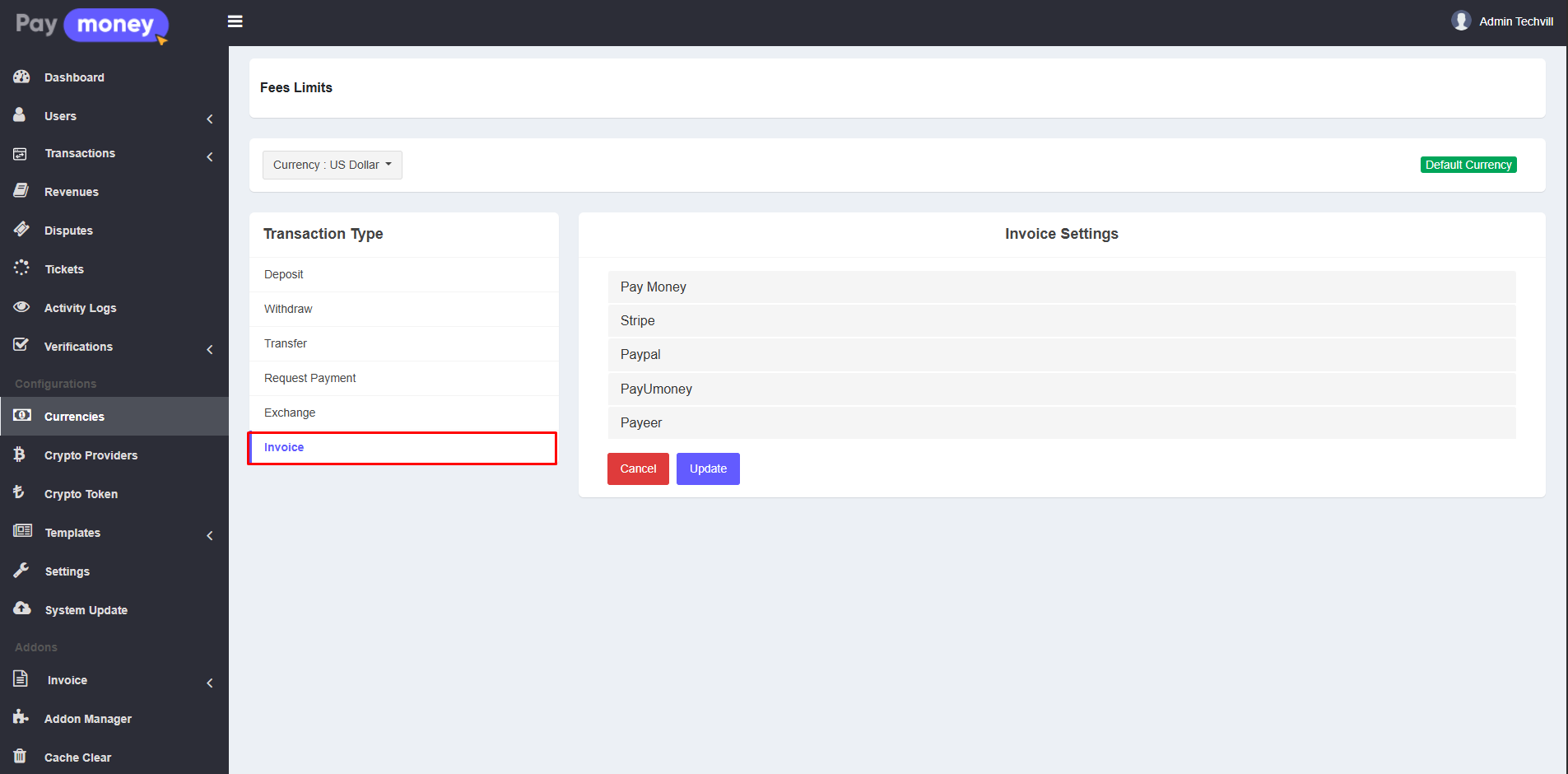
Fees and Limits
Admins can configure transaction fees and define limits for invoice payments. This ensures flexibility in managing charges and maintaining control over payment thresholds.
For more information on how PayMoney’s fees and limit features work, please refer to our Fees and Limits documentation.
Payment Method Activation
Admins can decide which payment methods are available for paying invoices. By enabling or disabling specific payment options from the Admin Panel, they can control how users complete their payments.
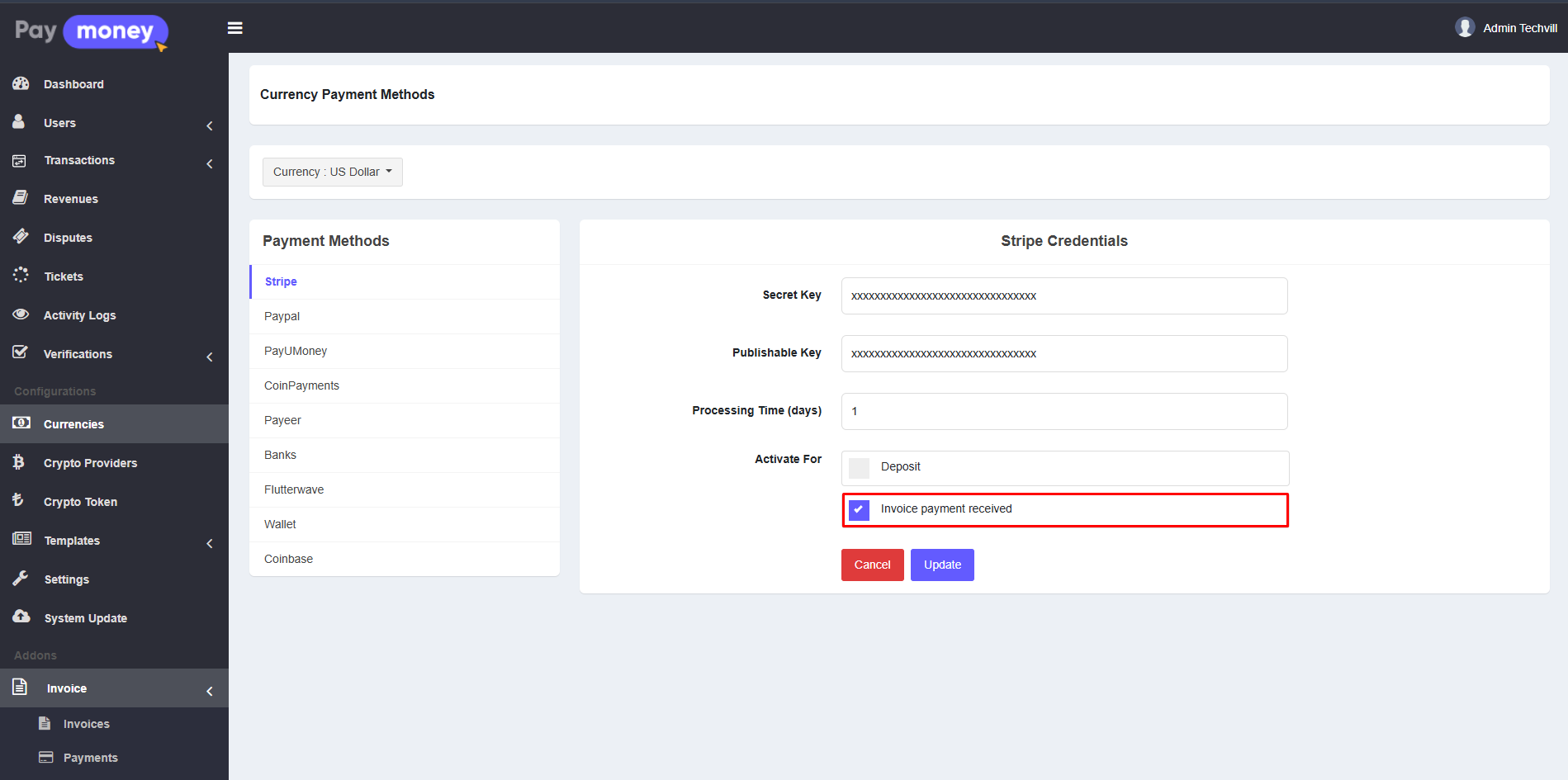
For details on PayMoney’s payment method configuration, please refer to our Payment Method documentation.
Email Templates
The system sends email notifications to merchants when an invoice payment is received, and to customers when a new invoice is issued. Admins can fully customize these email templates to match their business requirements and communication style.
Invoice Preferences
Admins can manage default invoice behavior through the Invoice > Preference settings:
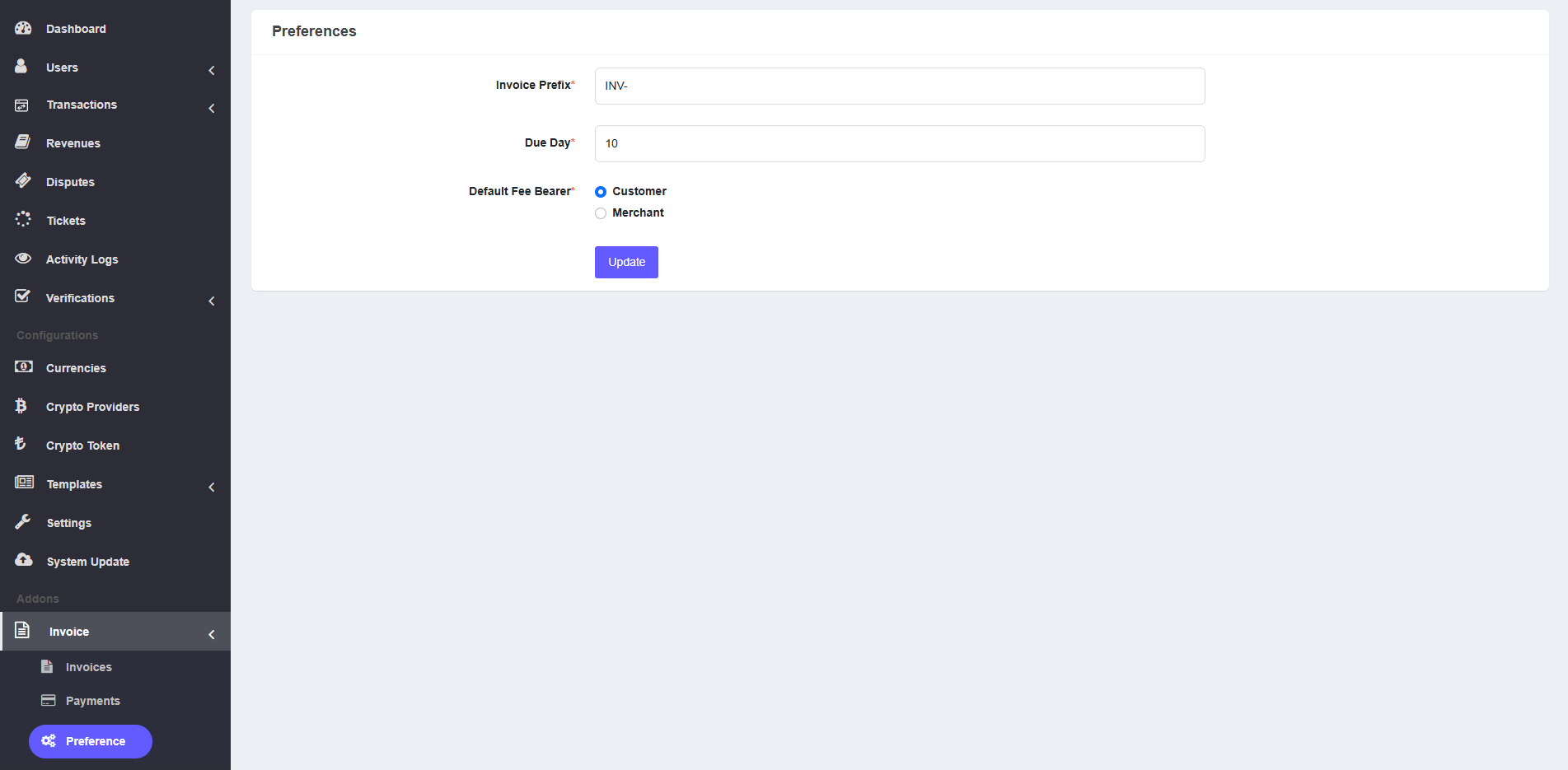
These preferences help standardize invoices across all merchants and ensure consistency in the payment process.
Transaction View
Admins can view a complete list of all invoices under Invoice > Invoices.
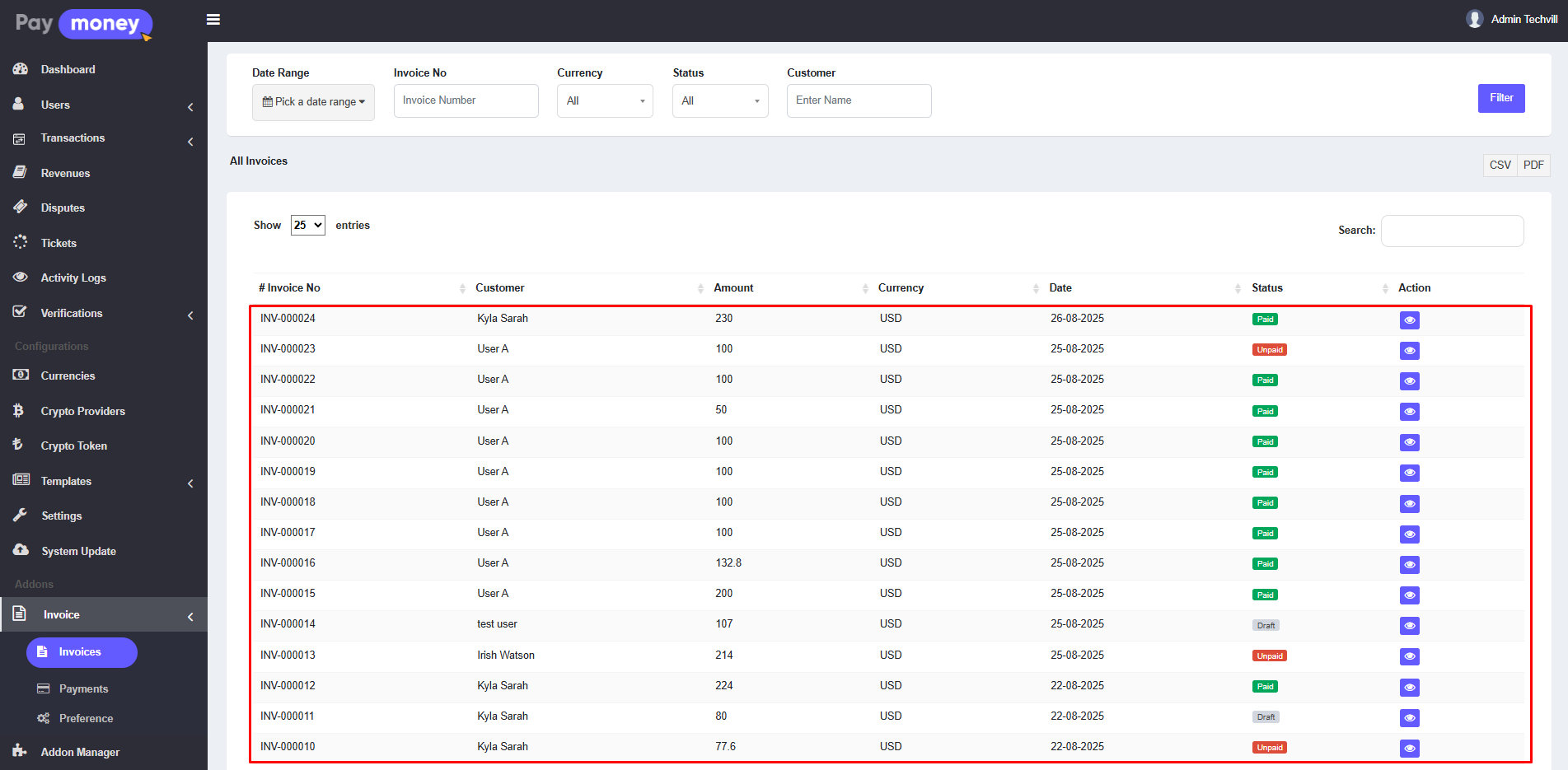
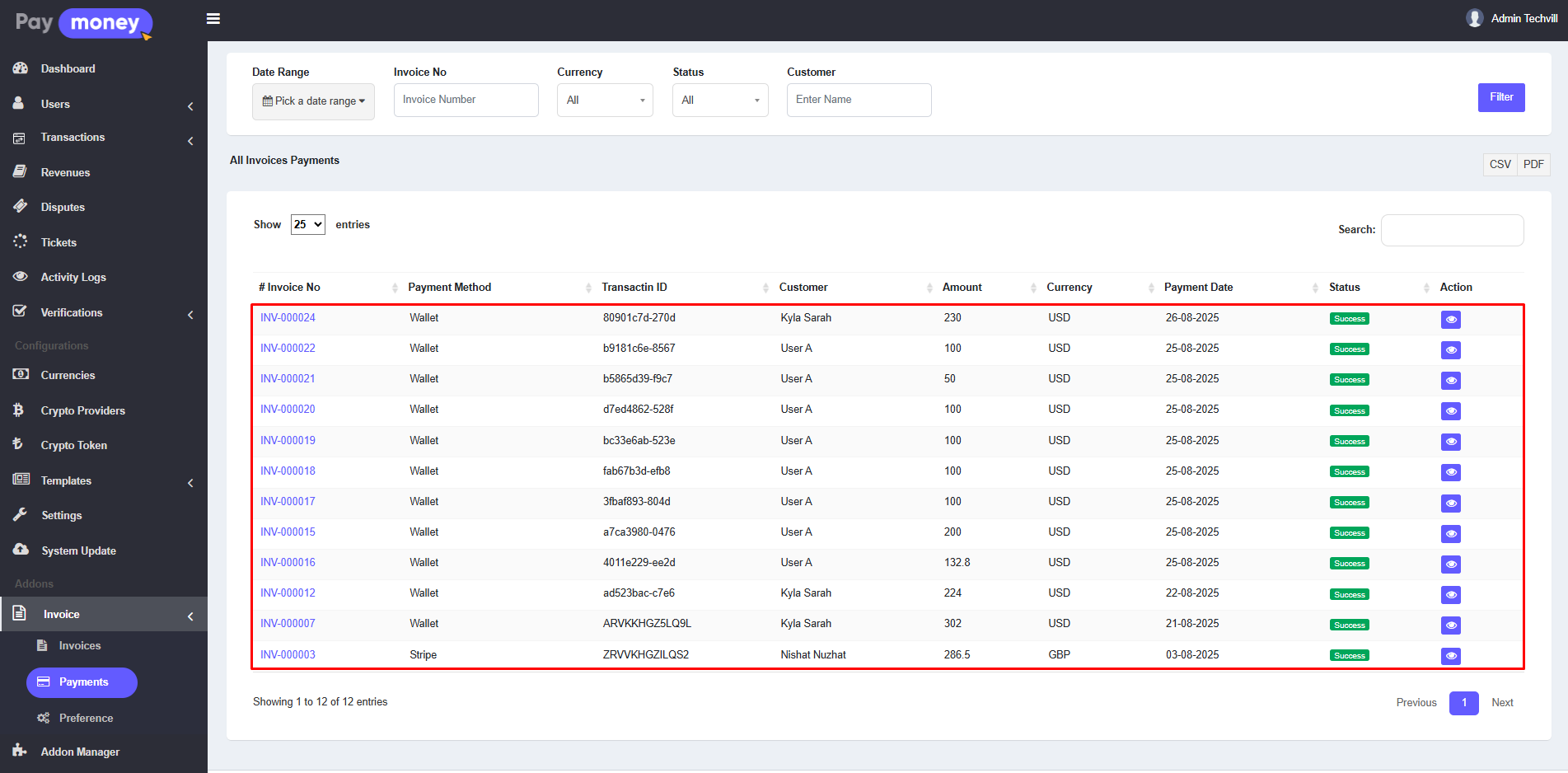
View a list of all successful paid invoices Invoice > Payments.
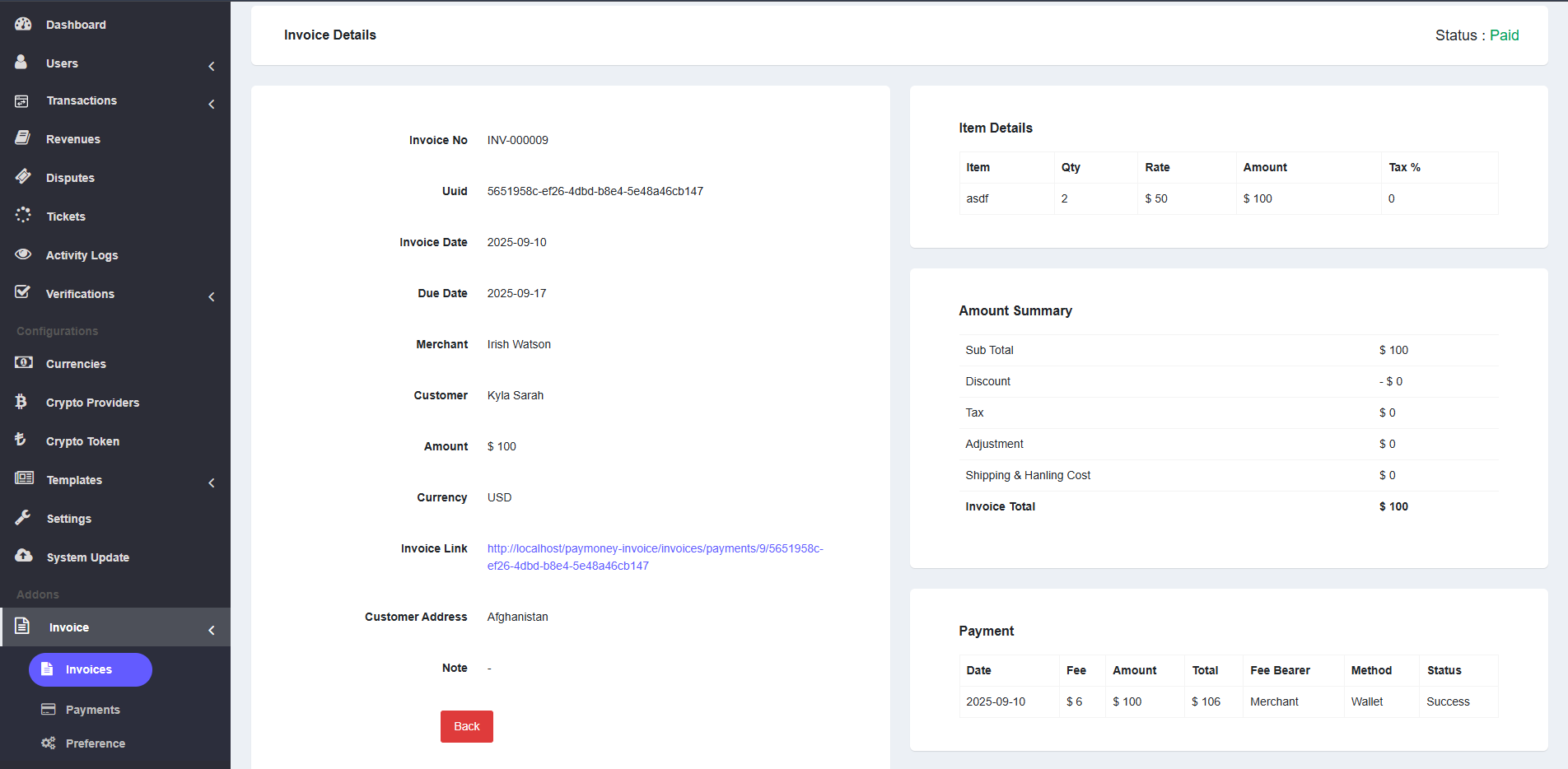
View a details of each invoices.
Merchant Panel
Merchants are the primary users of the Invoice Module. The following features are available from the Merchant Dashboard:
Generate an Invoice
To create a new invoice, follow these steps:
- Log in to your PayMoney merchant account.
- Navigate to Invoice > Invoices and click the Generate button at the top of the panel.
- Select the user type:
- Registered User – Simply choose the user from the list.
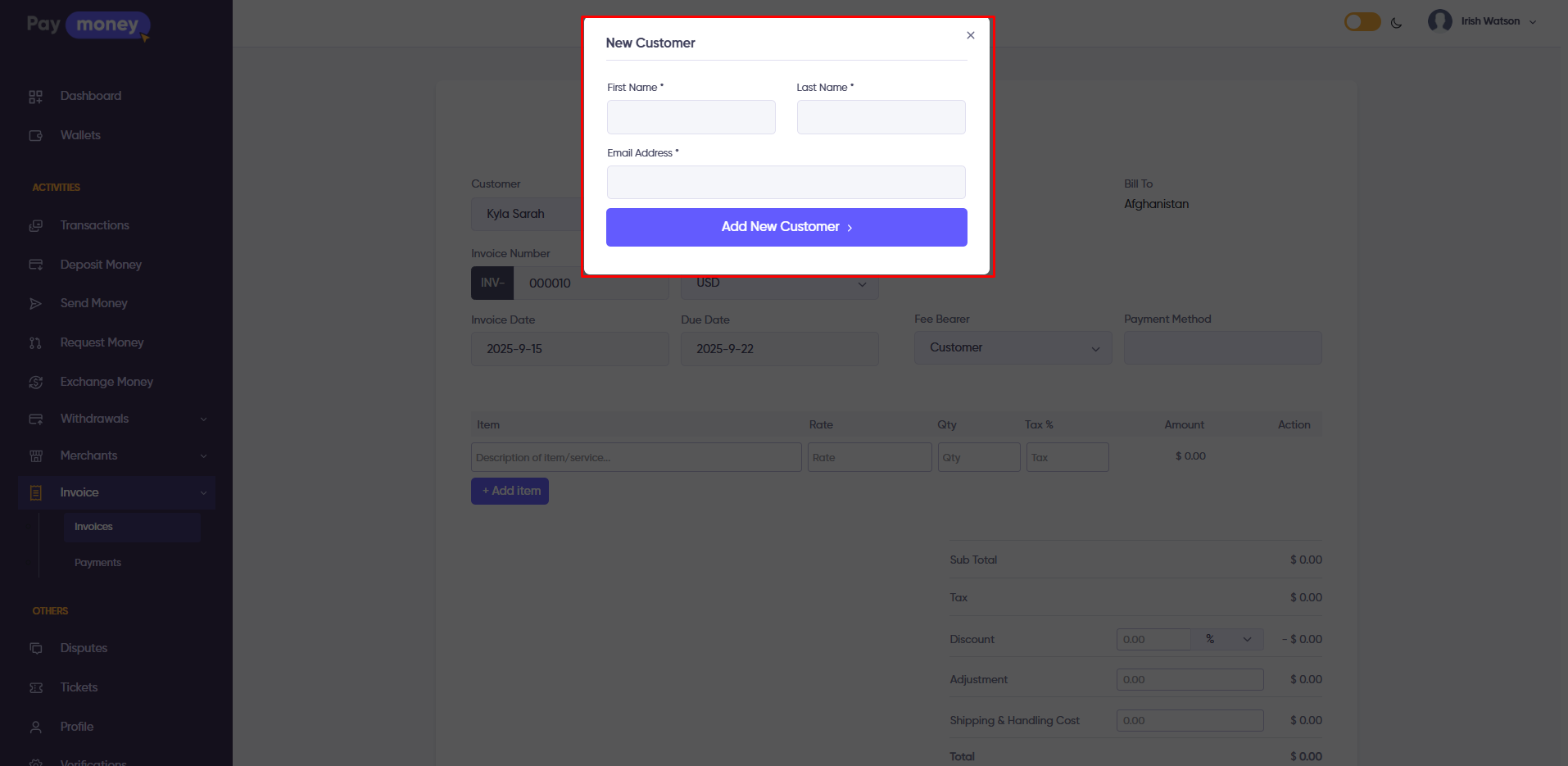
- Unregistered User – Provide the customer’s first name, last name, and email address.
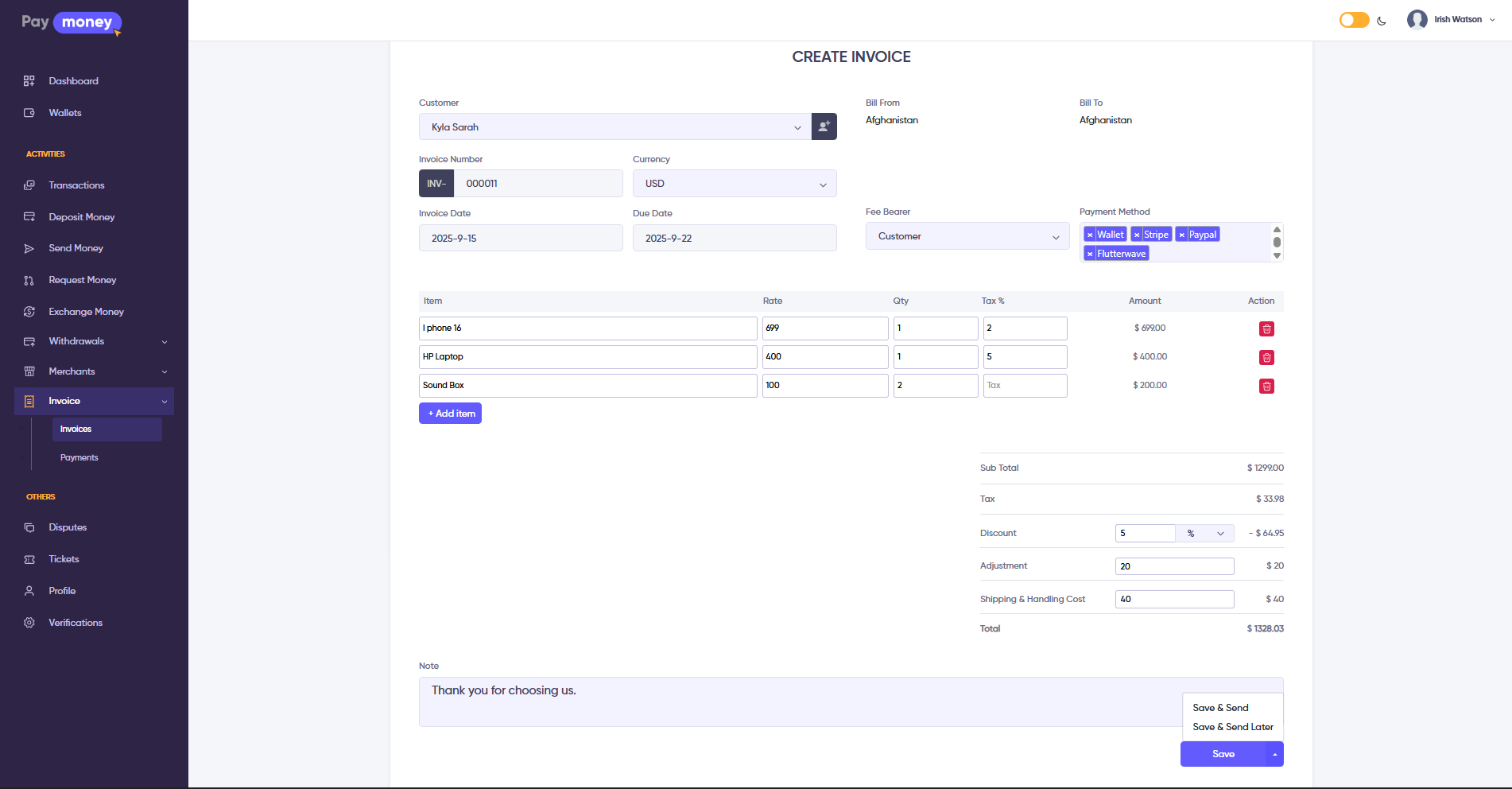
- Enter invoice details, including amount, description, due date, and any optional fields such as discounts , Adjustment or taxes.
- Send the invoice immediately to the customer, or save it as a draft to send later.
Share Invoice
- Invoice Link – Merchants can copy and share the invoice URL.
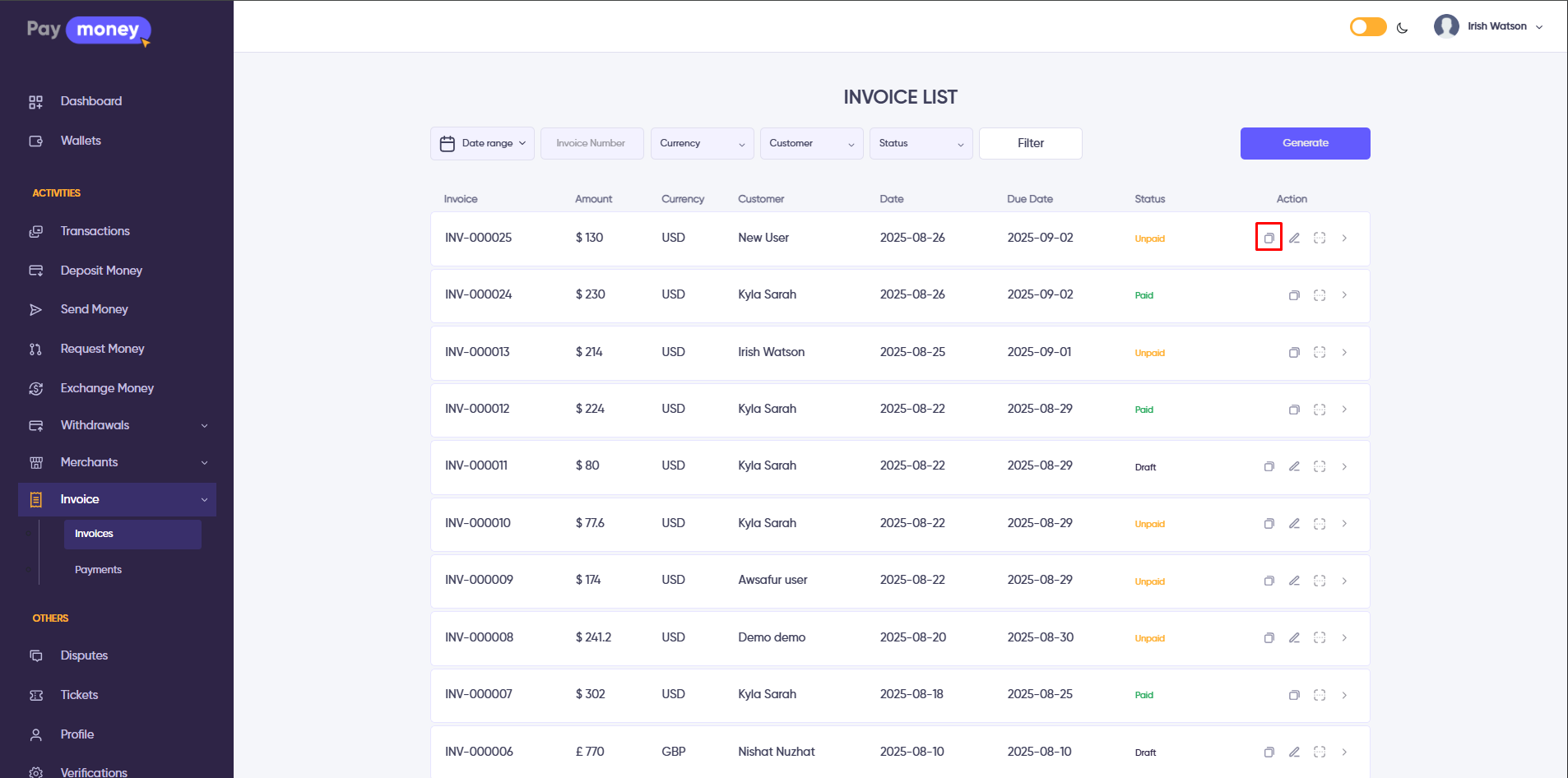
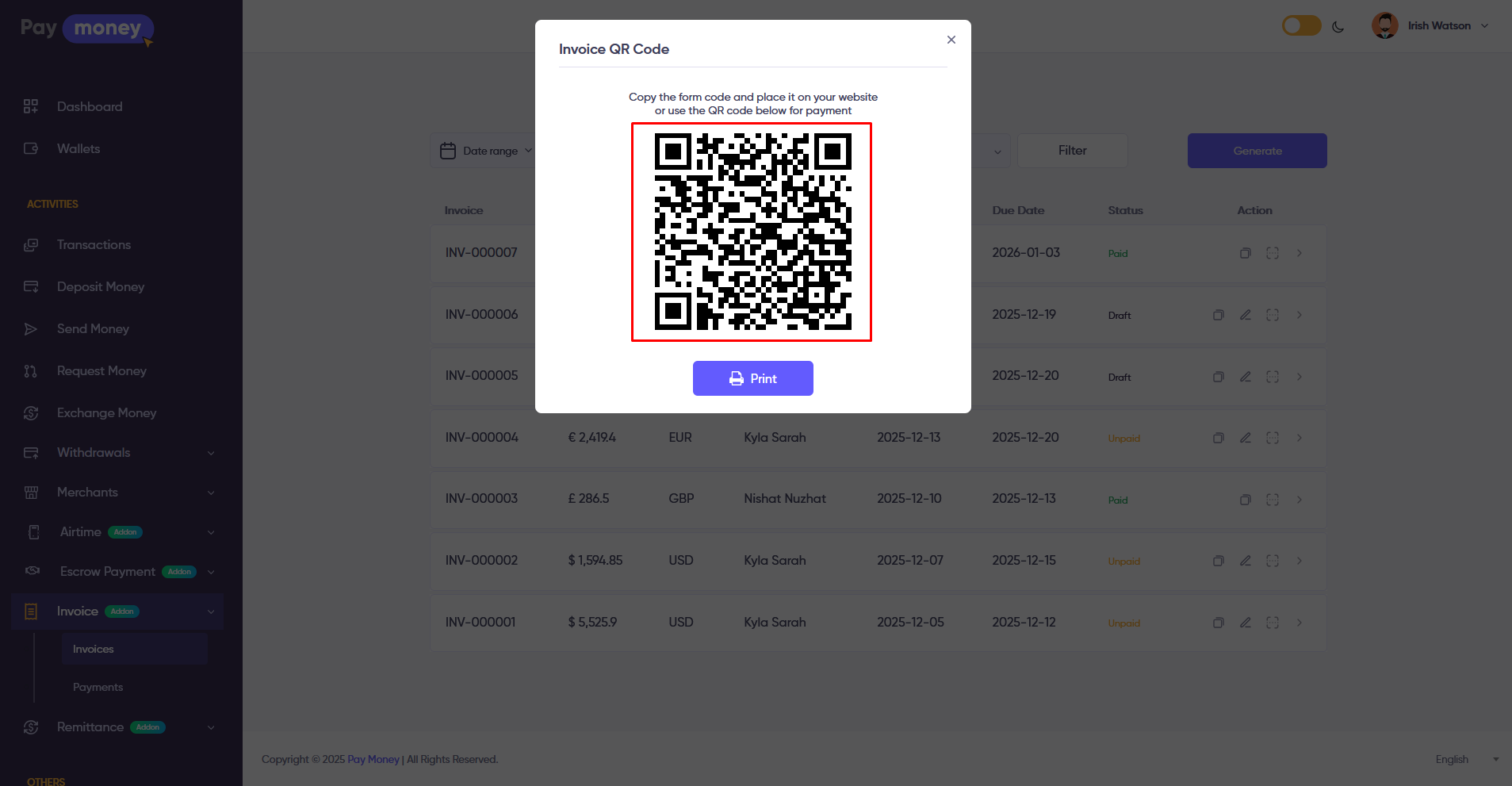
- QR Code – Each invoice generates a unique QR code, allowing register or unregistered users to make payments easily.
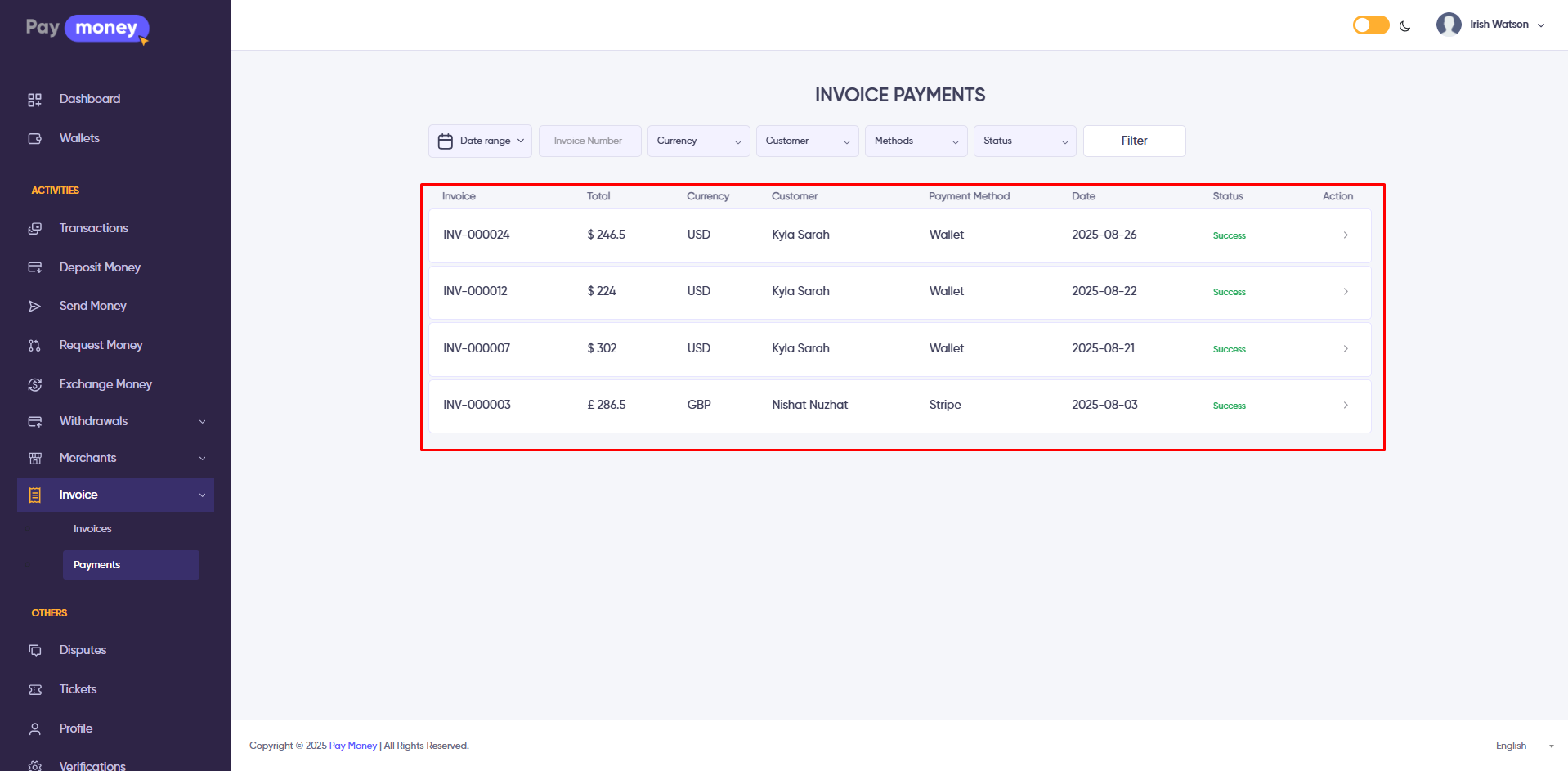
View Successful Transaction
Merchants can track all successfully received payments.
User Panel
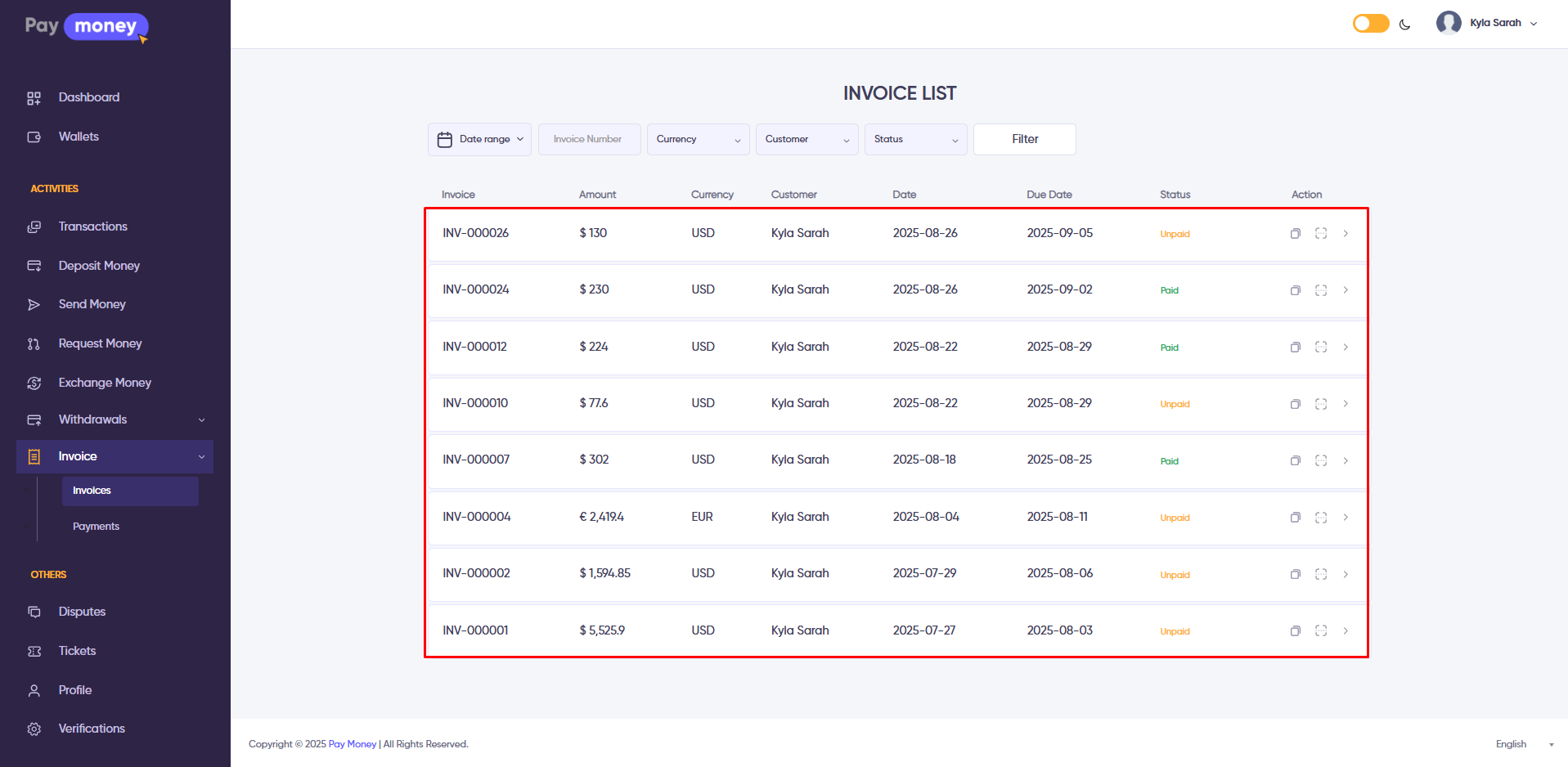
View Invoices
Users can view all invoices assigned to them directly from their dashboard
Pay an Invoice
Registered Users
- Log in to your PayMoney account.
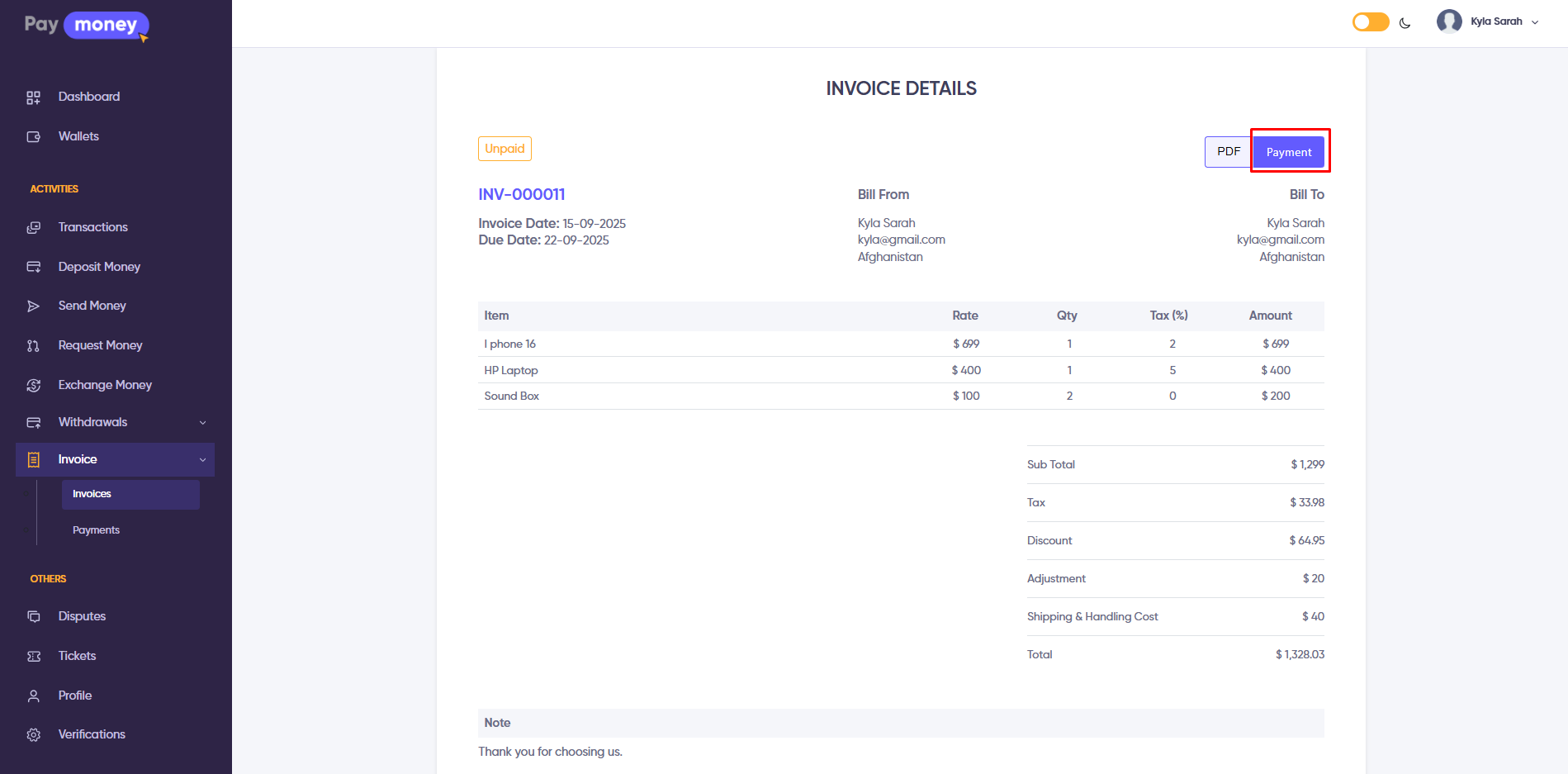
- Navigate to the Invoice Dashboard and open the assigned invoice.
- Review the invoice details, including amount, description, and due date.
- Proceed to the payment page directly from the invoice.
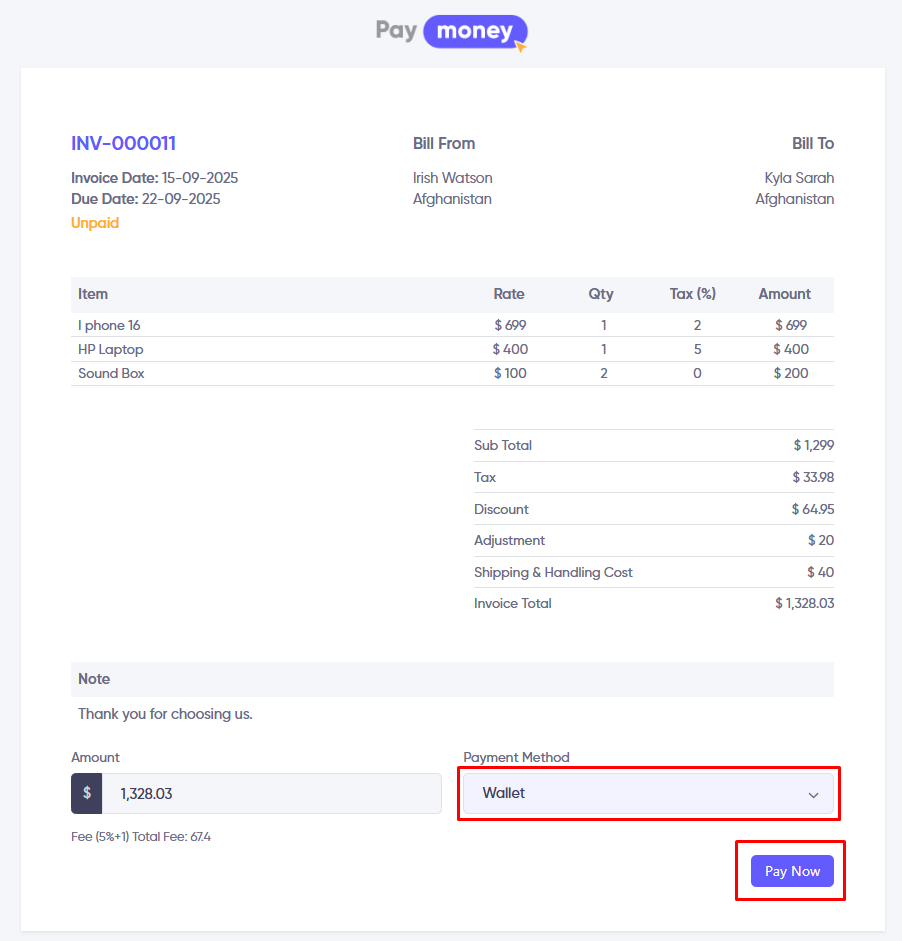
- Select a preferred payment method from the options provided by the merchant.
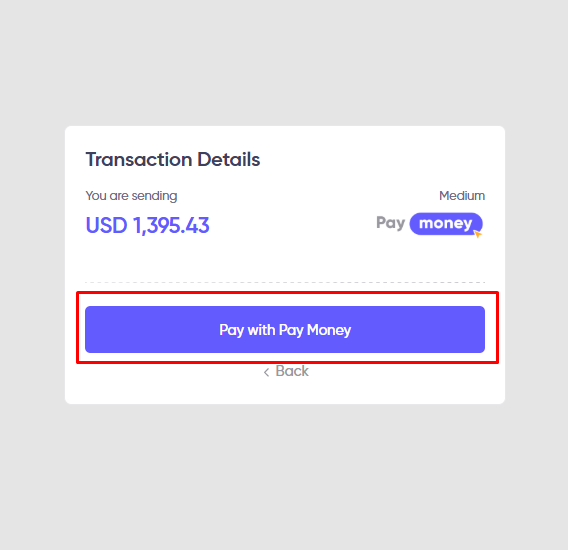
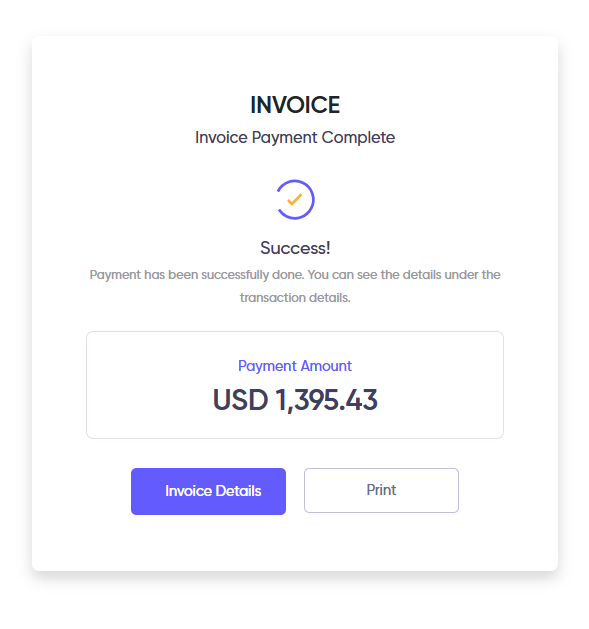
- Confirm and complete the payment securely.
Unregistered Users
- Open the invoice using the shared link or QR code provided by the merchant.
- You will be redirected directly to the payment page.
- Review the invoice details, including amount, description, and due date.
- Choose a payment method from the available options.
- Complete the payment securely without needing an account.
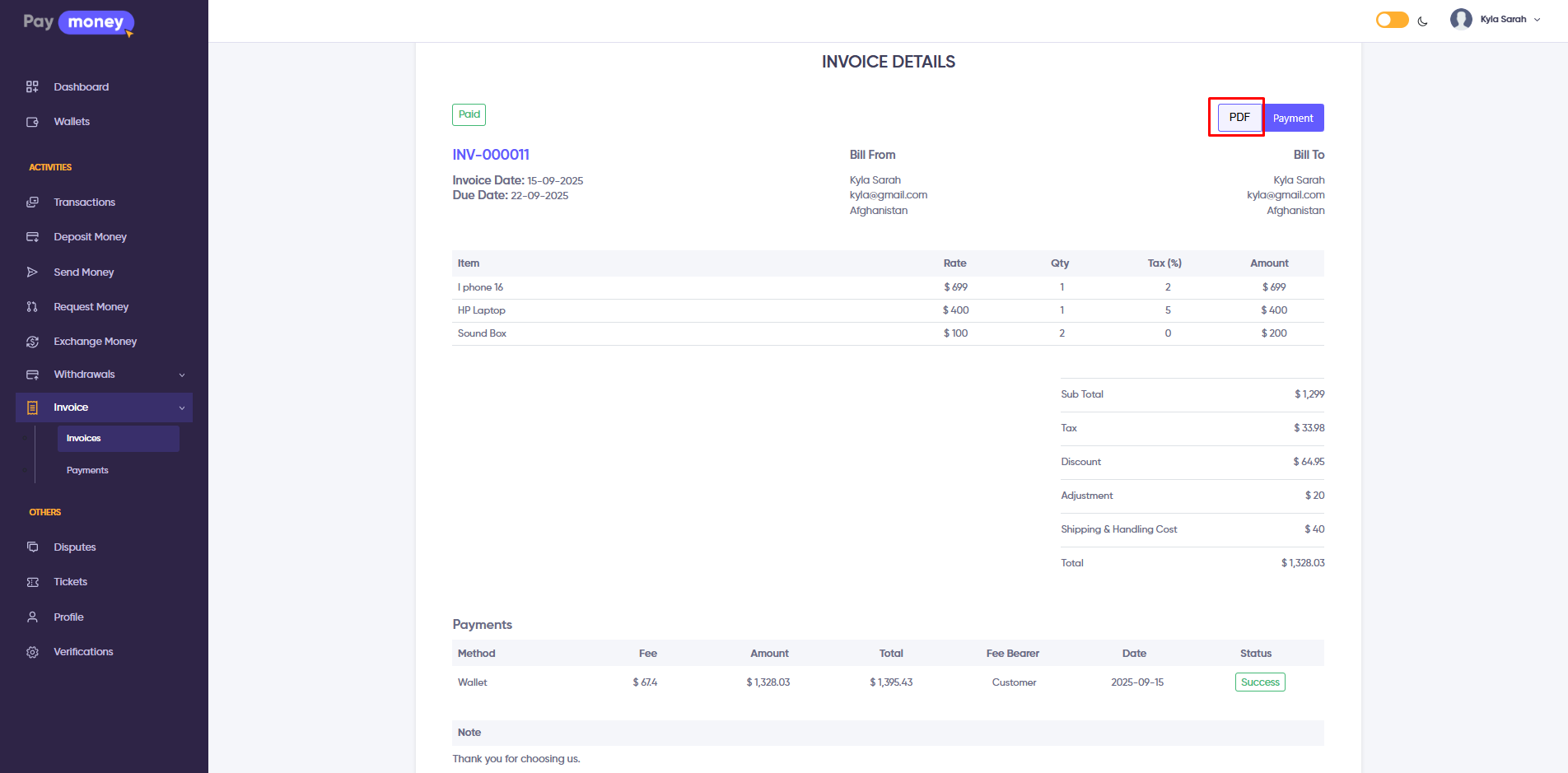
Download or Print Invoice
Users can download invoices as a PDF or print them directly from the system for their records.
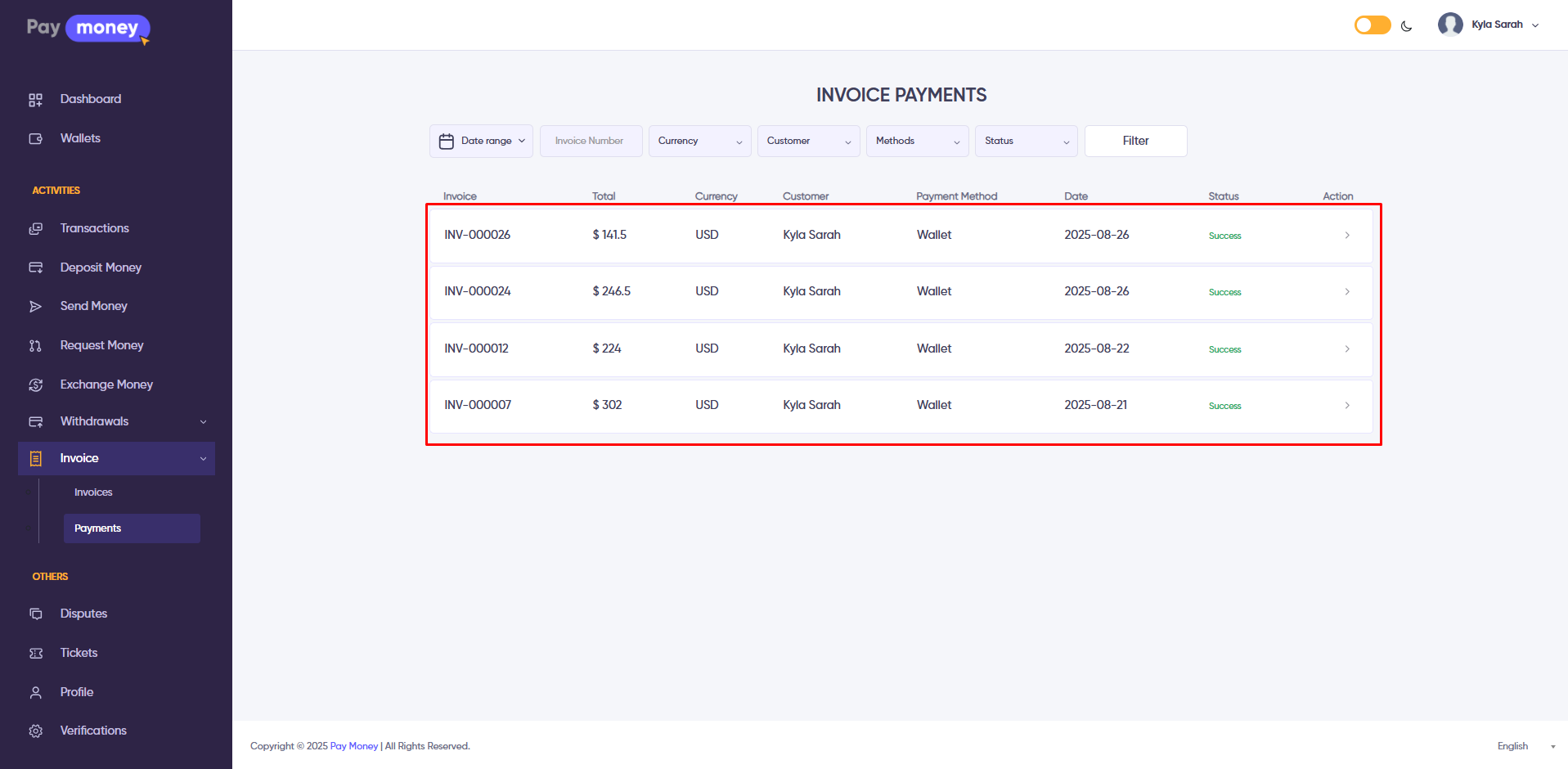
Track Payment History
The User Panel provides a complete history of all successful invoice payments, making it easy for users to review past transactions and maintain financial records.
Frequently Asked Questions (FAQ)
Q1. Do I need a PayMoney account to pay an invoice?
- No. Both registered and unregistered users can make invoice payments.
- Registered users log in to their PayMoney account and pay directly.
- Unregistered users can pay easily using the invoice link or QR code without creating an account.
Q2. What types of currency are supported for invoices?
- Only Fiat currency are supported.
Q3. What payment methods are available?
- Supported payment methods depend on the Admin’s currency configuration and the merchant’s settings.
- Currently, PayMoney invoice supports: PayMoney Wallet, Stripe, PayPal, PayUmoney, Payeer, Coinpayments, Coinbase and Flutterwave.
Q4. Can a merchant pay on behalf of a customer?
- Yes. From the Merchant Panel, a merchant can complete the payment on behalf of the customer if needed.